2025 Online Campaigns - Standard
Online giving provides and easy, efficient way for donors to make their gifts electronically, offering increased engagement options and more flexibility.
Advantages of Online Campaigns
- Donors enjoy the fast, secure, and intuitive system, maximizing the visibility of our donors' impacts while offering a consistent and familiar pledging experience.
- Invest in your local United Way's Key Initiatives or designate to any organization with 501(c)3 status.
- Make your pledge using multiple payment methods– check out once.
- Local donors making Leadership level gifts can learn more while about and join Donor Networks while making a pledge.
- Donors can create and manage their online giving profiles, and they can participate in future giving opportunities curated by your workplace in one centralized system.
United Way utilizes StratusLIVE's Give at Work and Ignite platforms for workplace giving and fundraising.
Tips & Tricks
- Trouble viewing the site in your browser? StratusLIVE's Give at Work and Ignite modules are optimized for Google Chrome and Firefox web browsers. Some organizations have security and firewall settings that may prohibit access to processing websites, and often in these cases, donors have been able to complete their pledges via personal networks or mobile devices.
- Disable Autofill to avoid errors in your forms. Browsers may use tools like Autofill to make filling out forms easier, but this can cause frustrations while making your pledge if incorrect information gets submitted. You can disable Autofill in the Security or Payment settings of your browser, which is recommended if donors are sharing devices to make their pledges.
Donor Help Desk
Donors can direct questions to the Donor Help Desk, which works in a combination of in-office and remote environments to provide fast and efficient customer service during normal business hours of 8:00 a.m. - 5:00 p.m. CST Monday through Friday. You can reach the Donor Help Desk at donor@unitedwaygmwc.org. A representative will be in touch within three business days during the campaign season.
Should you prefer to communicate by phone, please email us your name, company name, phone number, and a brief description of the issue and someone will call you directly.
The site layout represented in this demo is the template for a Standard Give at Work site.
Workplaces that partner with United Way may choose to further customize their site and user experience.
Standard Give at Work sites require self-registration and are available only to local workplace giving partners.
For a demonstration of a Custom Give at Work site, click here.
If you are a Donor with additional questions about your pledge, please contact the Donor Help Desk at donor@unitedwaygmwc.org.
If you are an Ambassador with additional questions about your campaign, please contact United Way Campaign Staff.
Register & Log In
Getting Started
Donors will receive an email with a link to their Give at Work site (ex. https://https://yourcompany.unitedwaygmwc.stratuslive.com/).

Open that link in your preferred browser [Chrome recommended] and click the Register button in the top menu.
Create your Username and Password
Create your login credentials on the Sign Up screen. Enter your work email address in the Username and Business Email fields, and create a Password that meets the site requirements (minimum of eight characters, and at least one of the following: lowercase letter, uppercase letter, number, and non-alphanumeric character (i.e. ! $ @).
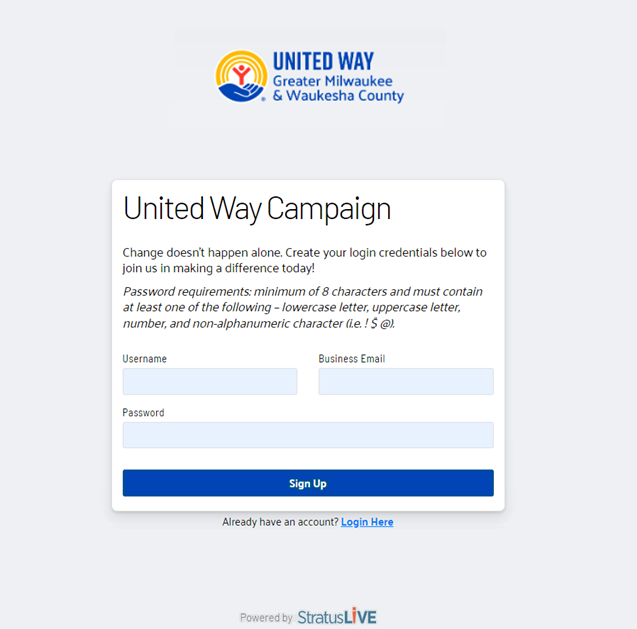
Click Sign Up.
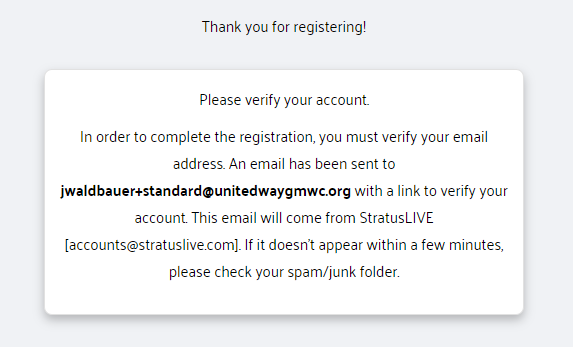
StratusLIVE will generate an email in which you can confirm your identity.
Check Your Email
StratusLIVE will generate an email within a few minutes that provides a link to complete Account Registration.
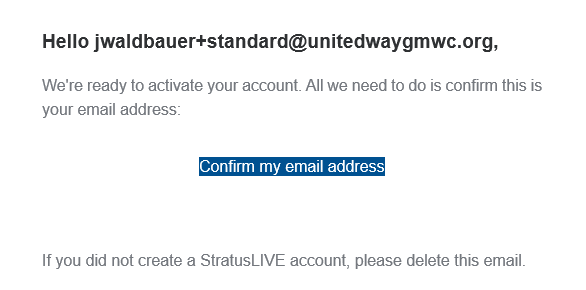
Click Confirm my email address to open a new browser window and log in.
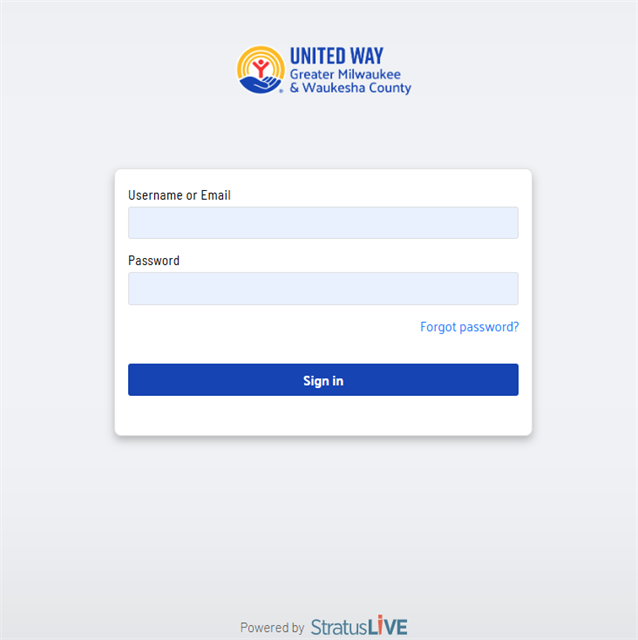
Sign in
Enter your Email, and click Next.
Enter the Username and Password you created, and Log In.
Create Your Account
Enter your Personal Information and Employment Information. (Required fields vary by company.)
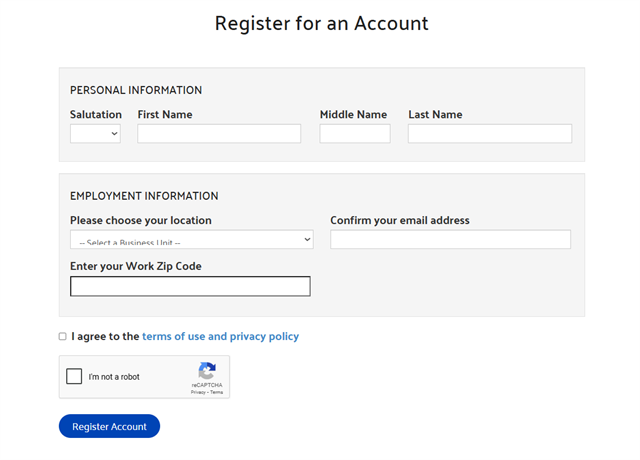
Click Register Account.
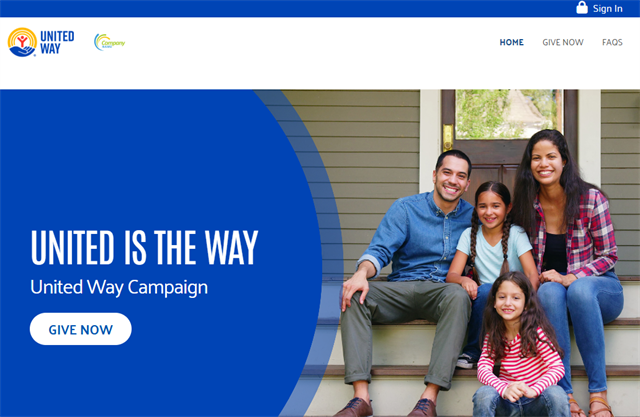
If you return to Give at Work to view or edit your pledge or make an additional gift, you will be able to access your profile with to the link from your kickoff email, clicking Sign In, and entering your Email and the Password you created.
Make a Pledge
Give Now
Welcome to the 2025 United Way Campaign! Click Give Now to get started.
Payment Methods
Choose your preferred Payment Method from the options provided.
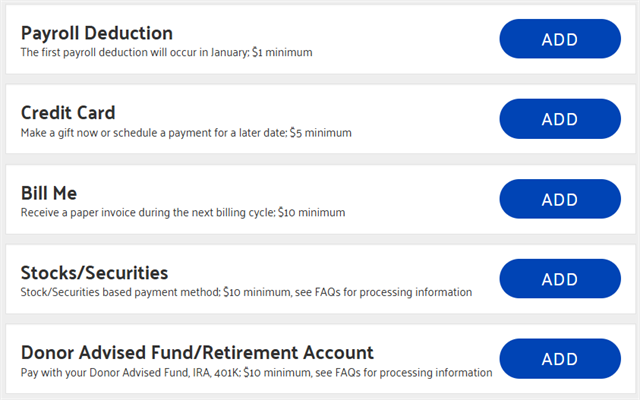
Please note that not all payment methods may be available for all donors. Speak to your workplace Campaign Ambassador if you have questions.
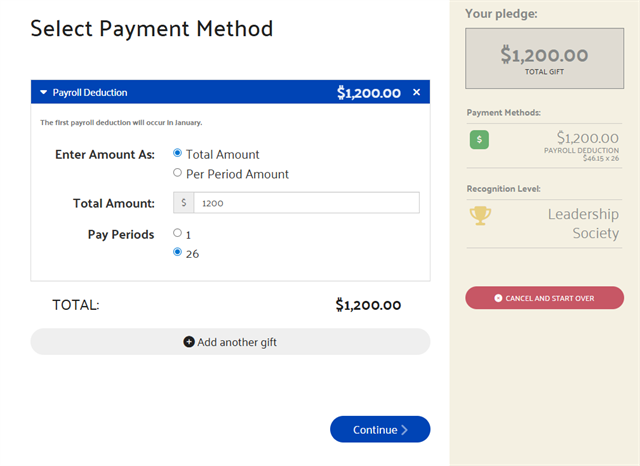
After you have chosen your preferred Payment Method, enter the amount of your pledge. The right side of the screen will display your Pledge Preview, which shows realtime details of your gift at each step, including Total Gift, Payment Methods, Investments, and Donor Networks.
Designating
Donors will see the Key Initiatives and strategies provided by their local United Way.
Enter the amount you would like to designate in the text field to the right of the Key Initiative descriptions. When funds are invested in United Way or designated to our Key Initiatives or another nonprofit, the selection will be added under the featured designations in the My Selections section. The Total Selected progress bar at the top of the screen will show the amount of the pledge that has been designated.
Donors will see their Investments and Designations populate in the Pledge Preview on the right.
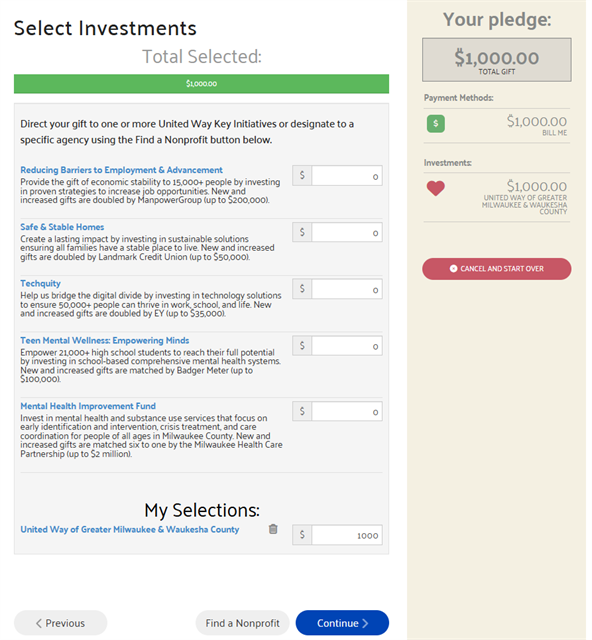
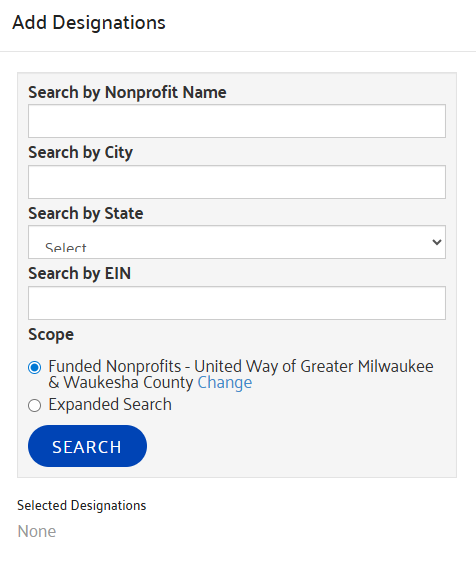
Donors that would like to designate to a 501(c)3 nonprofit can scroll to the bottom of this screen and select the Find a Nonprofit button, which will open the Add Designations screen.
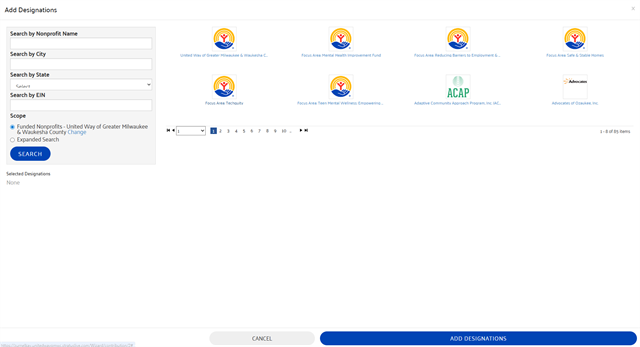
Donors will see United Way Program Partners, which they can scroll through, or they can use the Search functionality on the left side. Donors can click on the preferred nonprofit to learn more and then click Add This Nonprofit to include it in their Selected Designations.
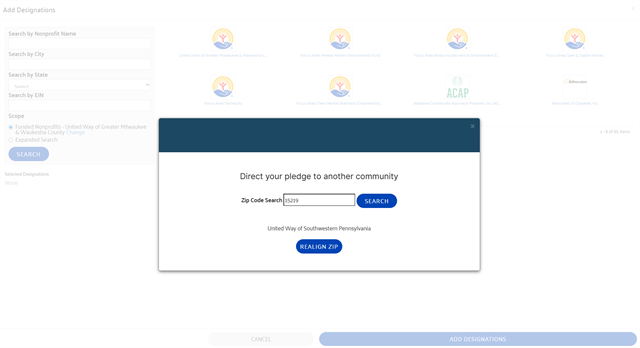
If Donors would prefer to align to a different United Way, they can use the Search functionality to change their local United Way setting. Click Change.
Donors can enter their preferred zip code and click Search, and they can then select Realign Zip.
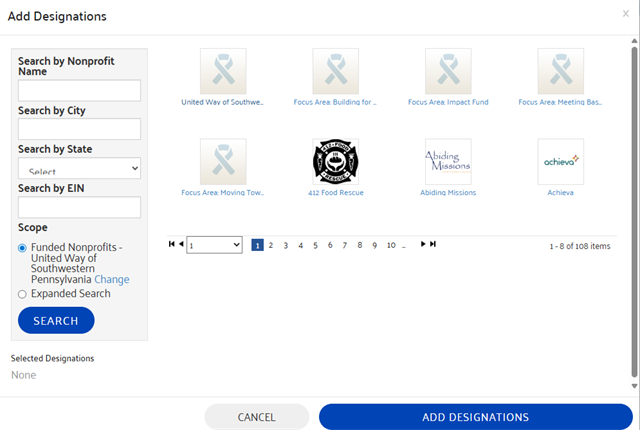
The realigned United Way's Key Initiatives and funded nonprofits will load in that Add Designations screen.
Should Donors' preferred nonprofit not appear in the lists or search results, Donors can Write-In their preferred nonprofit using the Write-In Button that will appear as the last visible option in the area to select designations.
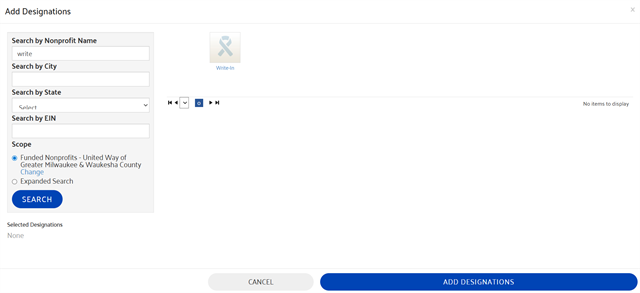
Include the name, city, and state of your preferred nonprofit, as well as any other information you can provide, and our Pledge Processing department will direct your pledge accordingly. In the event that there's difficulty connecting with your preferred nonprofit, donors will be contacted directly.
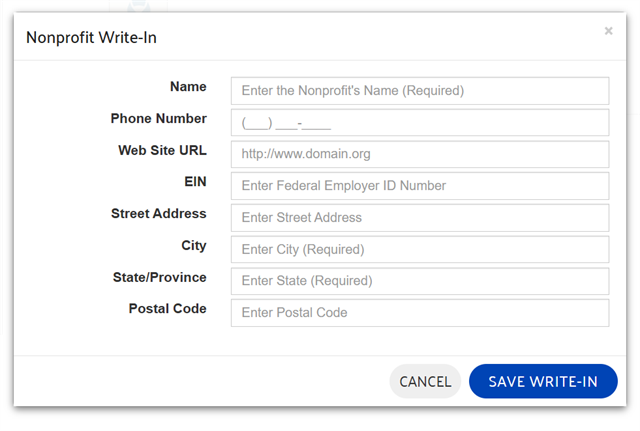
Once all Designations have been selected, click the Add Designations button at the bottom of the screen.
The nonprofits added will appear at the bottom of the list on the Select Designations page, where Donors can choose the amount to designate.
When funds are invested in United Way or designated to our Key Initiatives or another nonprofit, the selection will be added under the featured designations in the My Selections section.
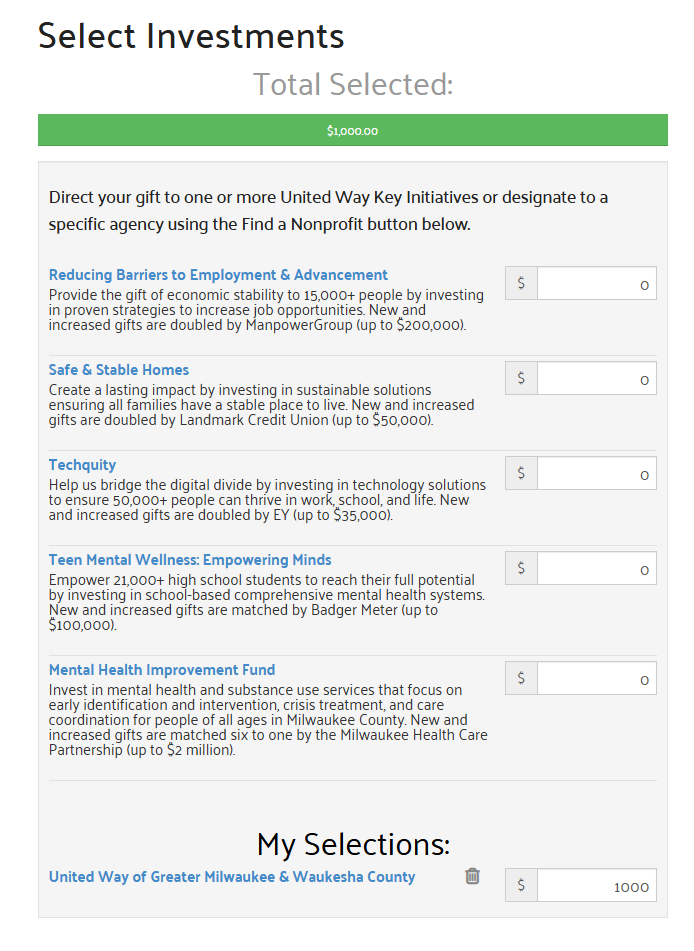
The designation bar at the top of the screen will be green when the full amount of the Pledge has been designated. Updated details will be available in the Pledge Preview on the right side.
Donor Networks
Donors within the United Way of Greater Milwaukee & Waukesha County region will have the opportunity to participate in one or more networks of like-minded individuals looking to make a difference in the community. Learn more about any of these groups, and check the box to sign up!
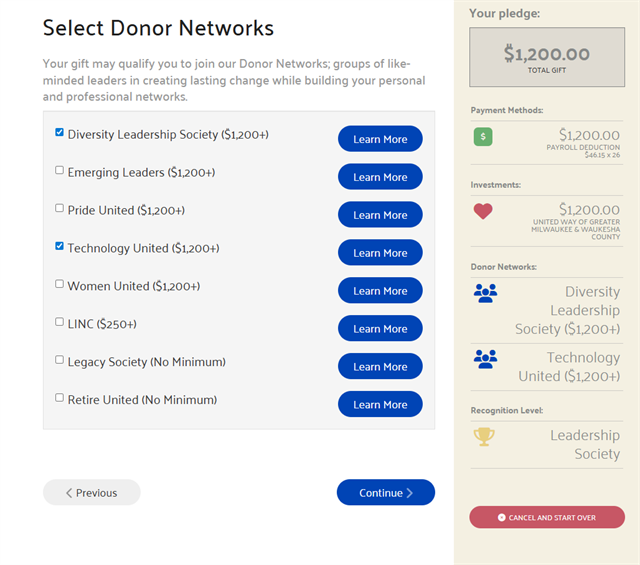
Please note that Donor Networks are considered a benefit of Leadership Level giving, and donors whose pledges do not meet the threshold of giving to qualify for a Donor Network will not be able to make a selection on this screen.
Edit User Profile
Donors can provide information to more completely fill out their User Profile.
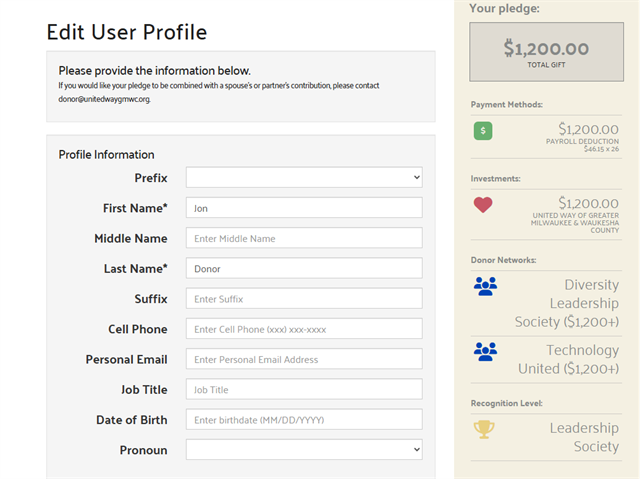
Donors that don't wish to enter additional information can proceed to the next screen, presuming they have provided the required information to process their pledges.
Review & Complete Gift
Donors can confirm their recognition preferences and review their pledge in the Pledge Preview on the right side of the screen.
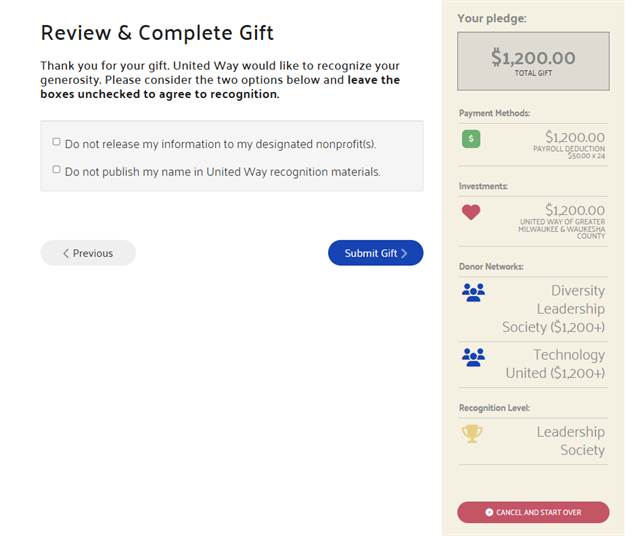
Click Submit Gift to confirm your pledge.
Donors will see a Thank You page.
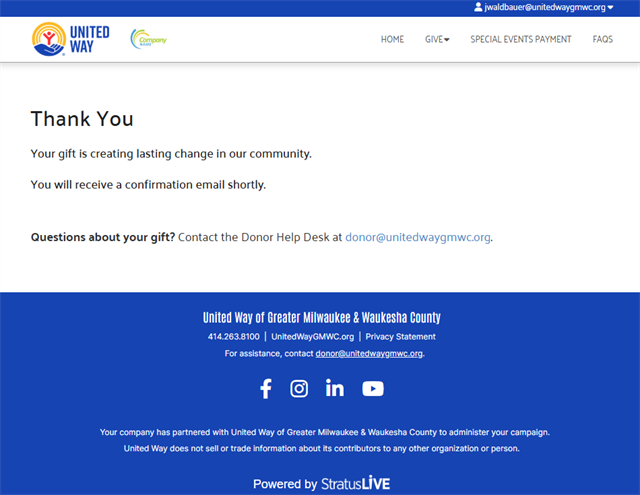
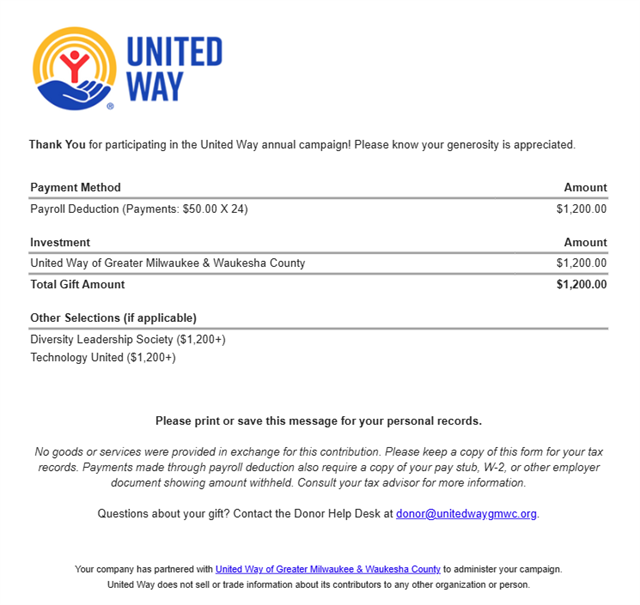
Shortly after completing their gifts, Donors will receive an email confirmation of their gift, including details of their Payment Methods, Designations, and Donor Network selections.